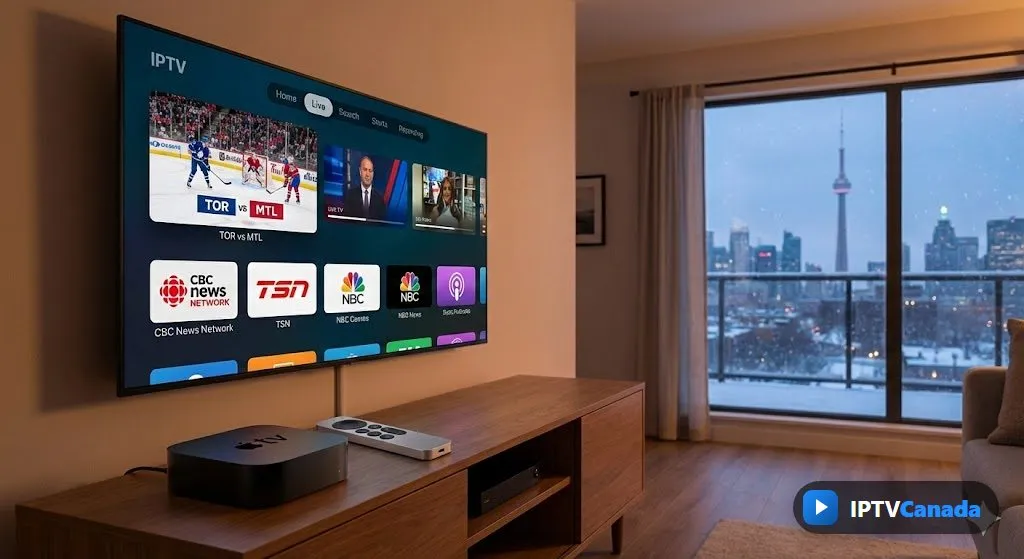
For many of us, a smart TV feels natural. For our parents and grandparents, switching from cable to streaming can feel like learning a new language. Endless menus, tiny buttons and busy screens often lead to frustration instead of relaxation.
It doesn’t have to be that way. With the right device and a few smart settings, you can build the easiest IPTV setup for seniors — one that works just like the “old TV” they’re used to.
Here’s how to create a simple, stress-free setup that puts clarity and ease of use first.
Why Standard IPTV Setups Frustrate Seniors
Most IPTV apps are made for tech-savvy users. They’re packed with features like multi-screen, catch-up and on-demand menus. For an older viewer, that’s just clutter. They don’t want to change settings — they want to watch the news or the game.
So the goal for simple IPTV for seniors is clear: one click to watch.
Step 1: Choose the Right Device
Everything starts with the hardware. Skip complicated Android boxes that need a mouse pointer or a game controller.
1. A MAG Box (feels like cable)
For pure simplicity, a MAG box (like the MAG 540) is often the best choice. It turns on straight to live TV. No apps to open, no home screen to navigate — it behaves just like a traditional cable box.
2. Roku or Firestick (with a little tidying)
If you prefer a streaming stick, Roku’s big, grid-style menu makes it one of the most senior-friendly streaming devices. Firesticks are powerful too, but they need some cleaning up to hide the ads and clutter that can confuse older users.
Step 2: Make It “Grandparent-Proof”
Don’t just hand over the remote. Set everything up first.
Turn On Auto-Start
The number one problem for older users is “finding the app”.
- The fix: set the device to open the TV app automatically when it turns on. Many Android boxes have a “boot on start” option, so live TV starts playing right away, just like cable.
Trim the Channel List
Thousands of channels sound great — until you have to scroll through them.
- The fix: hide everything they don’t watch. Create a “Favourites” group with only the 10 to 20 channels they actually use (local news, sports, weather). Set the app to open that group by default so they never get lost in foreign channels or movie menus.
Step 3: Keep the Screen Simple
The app matters too. Look for easy-to-use IPTV apps with large text and strong contrast.
- TiviMate (Premium): often the best option thanks to its clean look. You can hide every menu except the TV Guide, and lock the settings with a PIN so nothing gets changed by accident.
- IPTV Smarters: stay logged in and hide the “Series” and “Movies” tabs if they won’t use them, leaving only “Live TV”.
Step 4: Swap the Remote
The remote is where most of the confusion happens. A remote with 50 buttons is the enemy.
Get a Simplified Remote
Look for an inexpensive “senior universal remote” with just a few big buttons:
- Power
- Channel up/down
- Volume up/down
Map those buttons to the IPTV device. No more pressing the wrong button and switching the TV input by accident — a classic source of panic.
The Bottom Line: Give Back Their Independence
Technology should make life easier for older viewers, not harder. When you take the time to set up a simple, dedicated system, you’re not just giving them TV channels — you’re giving them independence.
The easiest setup isn’t about the most expensive gear. It’s about understanding how they like to watch, removing the obstacles, and letting them enjoy their favourite shows with a single click.
Want to Try It First?
Test the service on their TV before you commit. If you get stuck, our support team is happy to help you set it up by WhatsApp.