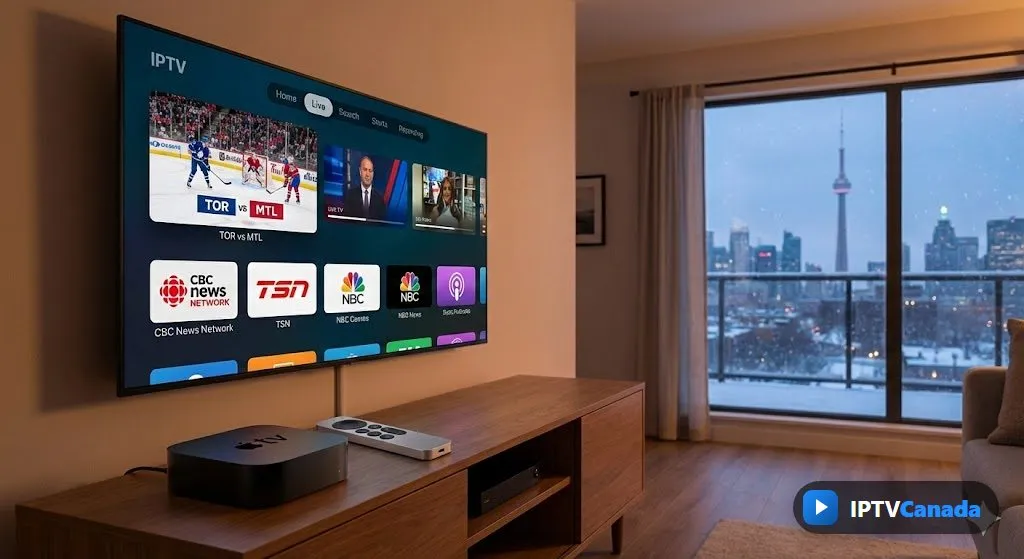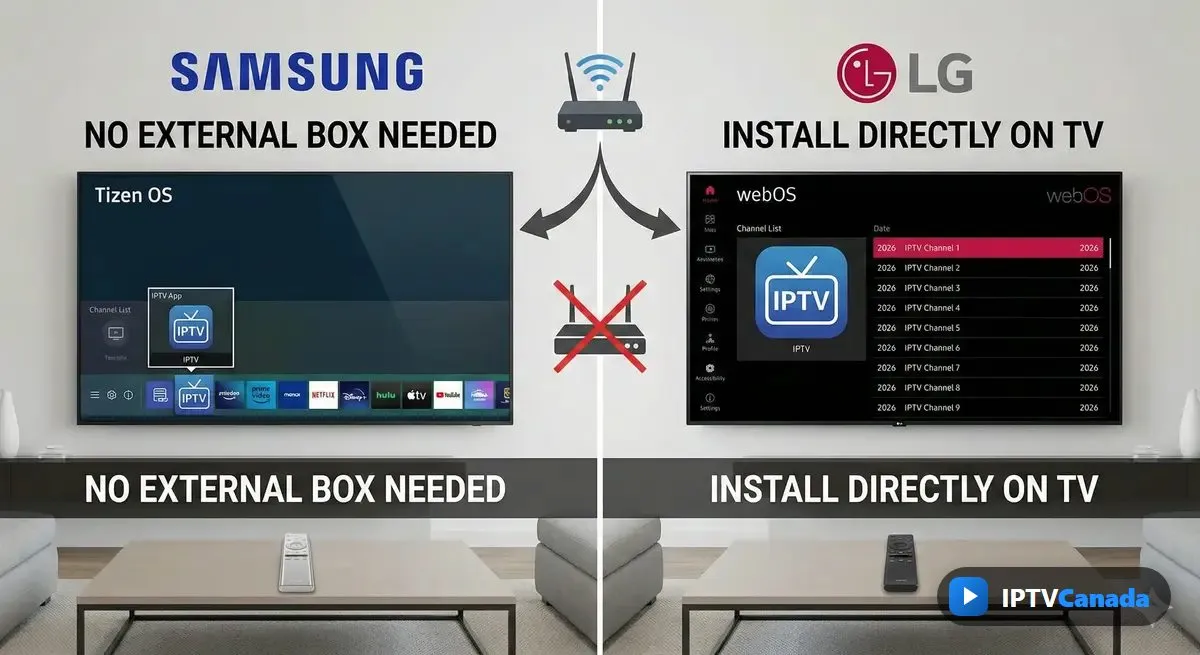
A clean TV stand is a beautiful thing. No Android box, no tangle of HDMI cables, no pile of remotes. If you own a recent Samsung or LG TV, it can handle your streaming all by itself.
Lots of people think they need extra hardware to watch live channels. They don’t. Here’s exactly how to install IPTV on Samsung and LG Smart TVs without a box, using the TV’s own app store — and just one remote.
Why Go Box-Free?
- Simplicity: one remote — the one that came with your TV.
- Tidier: no extra wires or boxes cluttering the room.
- Performance: recent TVs have fast processors that often open apps quicker than budget streaming sticks.
- Cheaper: you already own the TV, so there’s nothing else to buy.
The Catch: Tizen and webOS
Samsung and LG don’t run Android. Samsung uses Tizen and LG uses webOS, so there’s no Google Play Store.
Instead, you install a player app made for these systems that supports M3U playlists on a Smart TV.
Note: you’ll need an active IPTV subscription. This guide shows you how to install the player app that plays it.
How to Install IPTV on a Samsung Smart TV (Tizen)
Tizen is easy to use. Getting IPTV on Samsung and LG Smart TVs without a box starts in the Samsung Smart Hub.
Step 1: Get Connected
Make sure your TV is online. For live TV, an Ethernet cable is always better than Wi-Fi.
Step 2: Open the Smart Hub
Press Home (or Smart Hub) on your remote and select Apps.
Step 3: Find a Player App
Search for “IPTV”. Reliable options on Tizen include:
- Smart IPTV (SIPTV): a classic paid app known for stability.
- Net IPTV: a lightweight alternative if SIPTV isn’t available.
- Nanomid Player: handles big playlists well.
- IBO Player: a modern, popular interface.
Step 4: Install and Open
Pick your Smart IPTV app for Samsung, click Install, then open it.
Step 5: Write Down the MAC Address
The app shows a MAC address on screen. Note it down — you’ll need it to add your playlist.
How to Install IPTV on an LG Smart TV (webOS)
LG’s Magic Remote makes webOS easy to get around, and the webOS IPTV setup is very similar to Samsung’s.
Step 1: Open the LG Content Store
Press Home and find the LG Content Store (the shopping bag icon).
Step 2: Search
Select the magnifying glass and type “IPTV”.
Step 3: Pick a Player
Many of the same apps are available:
- Smart IPTV (SIPTV)
- DuplexPlay (check availability in your region)
- NET IPTV
- SS IPTV (free, but a little older)
Step 4: Install and Launch
Download your Smart IPTV app for LG and open it from the home menu.
Step 5: Note the MAC Address
Just like on Samsung, the app shows a MAC address on its start screen. Keep it handy.
Final Step: Add Your Playlist (M3U)
The app is empty until you connect your subscription. Typing a long link with a TV remote is painful, so do this part on your phone or computer:
- Grab your phone or computer.
- Go to the app’s official website (for example, the Smart IPTV or Net IPTV site).
- Enter your MAC address on the “Activation” or “My List” page.
- Paste your M3U link from your provider’s welcome email.
- Click Submit.
- Restart the app on your TV. Close it completely, reopen it, and your channels will load.
The Bottom Line
Setting up IPTV on Samsung and LG Smart TVs without a box takes about ten minutes and makes the most of the TV you already own. One remote, no clutter, great picture.